
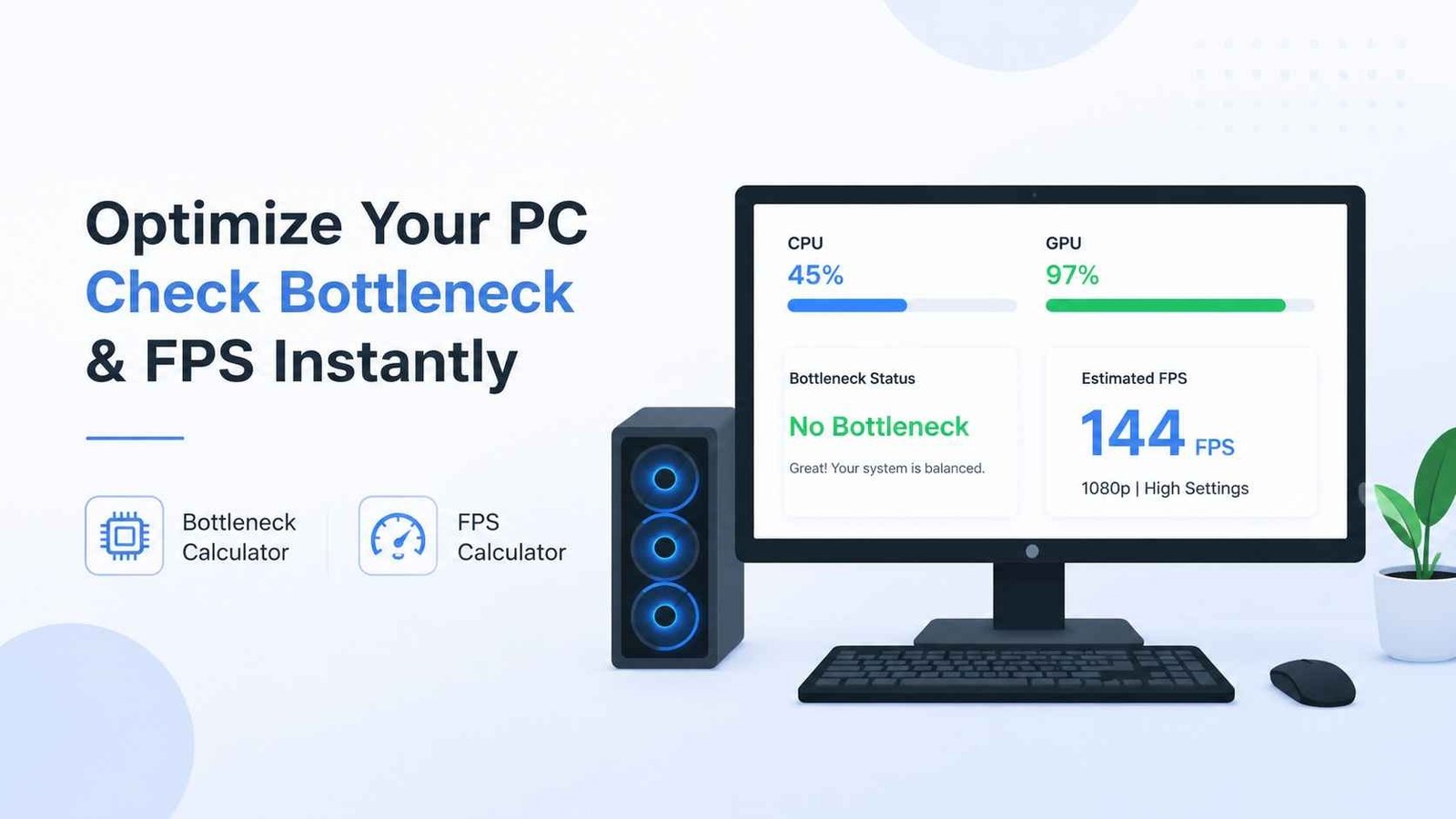
Building or upgrading a gaming PC is often presented as a simple equation: buy a powerful processor, add a capable graphics card, install enough RAM, and expect smooth performance. In practice, PC performance is more complicated. A system can contain excellent individual components and still struggle with inconsistent frame rates, stuttering, long loading times, or poor gaming performance.
One of the main reasons is that PC components have to work together. When one component cannot keep up with the others, it can limit the performance of the entire system. This situation is commonly described as a bottleneck. Understanding bottlenecks, frame rates, drivers, and system optimization can help users make better hardware decisions and troubleshoot performance problems more effectively.
What Is a PC Bottleneck?
A bottleneck occurs when one component limits the performance potential of another component or of the overall system. The most common examples involve the CPU and GPU.
For example, a powerful graphics card paired with an older processor may not reach its full potential in CPU-intensive games. The GPU may have additional capacity available, but the processor cannot provide game calculations and instructions quickly enough. On the other hand, a strong CPU combined with a relatively weak graphics card can result in the GPU becoming the limiting factor, particularly at higher graphical settings.
Other components can also contribute to performance limitations. Insufficient RAM, slow storage, thermal throttling, background applications, and outdated drivers may affect the experience even when the CPU and GPU appear adequate.
Because of these variables, determining whether a hardware combination is balanced is more useful than simply comparing individual component specifications.
Why a Bottleneck Calculator Can Help
Choosing compatible PC hardware can be difficult, especially when comparing processors and graphics cards across different generations. A bottleneck calculator can provide a useful starting point by estimating whether a selected CPU and GPU combination may have a significant performance imbalance.
IObit’s Bottleneck Calculator allows users to evaluate hardware combinations before making upgrade decisions. Rather than relying entirely on guesswork, users can enter relevant hardware information and use the results as an indication of where a potential limitation may occur.
However, a calculator should be treated as a planning tool rather than an absolute measurement. Actual performance depends on the game or application, resolution, graphics settings, memory configuration, cooling, drivers, and many other factors.
For that reason, the best approach is to combine calculator results with real-world benchmarks and an understanding of how the PC will be used.
Understanding CPU and GPU Bottlenecks
CPU and GPU bottlenecks behave differently depending on the workload.
A CPU bottleneck can become noticeable in games that perform many calculations, simulate large numbers of objects, or require substantial background processing. It may be more visible when targeting very high frame rates at lower resolutions.
A GPU bottleneck, meanwhile, is common when playing demanding games at high resolutions or with intensive graphics settings. In this situation, the graphics card is working close to its maximum capacity while the CPU still has additional performance available.
Neither type is automatically a problem. In fact, a GPU running at high utilization during a demanding game can be completely normal. The concern arises when the hardware combination prevents the user from achieving the performance level they actually want.
This is why the intended resolution and refresh rate matter when evaluating a PC upgrade.
What Does FPS Mean?
FPS stands for frames per second. It represents how many individual frames a computer can render and display during one second of gameplay.
Higher FPS generally produces smoother motion, but the ideal frame rate depends on the game, monitor, and player’s preferences. A competitive gaming setup with a high-refresh-rate display may benefit significantly from higher frame rates, while a slower-paced single-player game may feel perfectly comfortable at a lower level.
FPS can also fluctuate. A game might average 100 FPS but occasionally drop to 55 FPS during complicated scenes. Those drops can be more noticeable than the average number itself.
This makes FPS analysis more useful when it considers both average performance and consistency.
Using an FPS Calculator for Better Planning
An FPS calculator can help users estimate expected gaming performance based on hardware and other relevant settings. IObit’s FPS Calculator is designed to give users a convenient way to explore potential frame-rate expectations before adjusting or upgrading their systems.
Such a tool can be particularly useful when comparing hardware combinations or considering whether a PC is suitable for a particular gaming target.
For example, someone aiming for smooth 144Hz gameplay may want to investigate whether their hardware is capable of consistently delivering high frame rates at their preferred resolution and graphical settings. An FPS estimate can help establish expectations before purchasing new components.
As with bottleneck calculations, estimates should not be confused with guaranteed benchmark results. Actual FPS can vary between games and even between different areas of the same game.
Drivers Can Affect Gaming Performance
Hardware specifications are only part of the performance equation. Drivers provide the software communication layer between hardware and the operating system, meaning outdated or problematic drivers can contribute to compatibility and performance issues.
Graphics drivers are particularly important for modern gaming because developers and hardware manufacturers frequently release updates that address bugs, improve compatibility, and optimize performance for newer titles.
Keeping drivers updated can therefore be an important part of PC maintenance. However, users should obtain drivers from reputable sources and make sure they install versions compatible with their hardware and operating system.
Tools such as IObit’s Driver Booster can help users identify outdated drivers and simplify the driver-update process. Automated driver-management tools can be convenient, but users should still review updates carefully and maintain appropriate system backups or restore options when making significant changes.
System Optimization Matters Too
Even a well-balanced PC can experience performance problems if the operating system is overloaded with unnecessary processes.
Applications running in the background can consume CPU cycles, memory, storage resources, or network bandwidth. Startup programs can also increase boot times and continue consuming resources after Windows loads.
Regular maintenance can help keep a PC responsive. Removing unnecessary applications, managing startup programs, clearing unwanted files, and monitoring resource usage are all practical steps.
A system optimization utility such as IObit’s Advanced SystemCare can provide tools for managing different aspects of Windows maintenance. The goal should not simply be to make as many changes as possible, but to identify unnecessary activity and improve overall system efficiency without compromising stability.
Removing Unwanted Software
Another frequently overlooked performance issue is unnecessary software. Programs that are rarely used can occupy storage space, create background services, or add startup entries.
Uninstalling software that is no longer needed can make system management easier. It is also important to remove applications properly rather than simply deleting their shortcuts.
IObit Uninstaller is designed to help users remove unwanted programs and associated components. This can be useful when conventional uninstall processes leave behind files or settings.
Still, users should avoid removing software they do not recognize without first determining what it does. Some components are required by Windows, hardware drivers, or other applications.
How to Build a More Balanced Gaming PC
A balanced gaming PC starts with a clear performance target. Before purchasing components, consider the resolution, refresh rate, games, and applications the system will be expected to handle.
For example, someone focused on high-resolution gaming may prioritize GPU performance, while a player targeting extremely high frame rates in competitive games may need stronger CPU performance as well.
A practical planning process looks like this:
- Define the desired resolution and refresh rate.
- Identify the games or applications you use most.
- Compare CPU and GPU capabilities.
- Check potential bottlenecks with a calculator.
- Review estimated FPS for the intended workload.
- Consider RAM, storage, cooling, and power requirements.
- Keep drivers and Windows components maintained.
- Benchmark the finished system under real workloads.
This approach is more reliable than choosing components based solely on price or individual specification numbers.
Final Thoughts
PC performance depends on the interaction between hardware, software, and workload. A powerful graphics card cannot always compensate for a processor limitation, while a fast CPU does not guarantee high FPS when the GPU is struggling with demanding graphics.
Tools such as a bottleneck calculator and FPS calculator can make hardware planning easier by providing useful estimates. Meanwhile, regular driver updates, system maintenance, and careful software management can help ensure that existing hardware performs as expected.
The most important lesson is to look at the PC as a complete system rather than a collection of isolated components. By understanding bottlenecks, monitoring FPS, maintaining drivers, and keeping unnecessary software under control, users can make more informed upgrade decisions and get a smoother experience from the hardware they already own.